'/%3e%3crect%20x='68'%20y='68'%20width='888'%20height='888'%20rx='220'%20fill='none'%20stroke='%232A2E3A'%20stroke-width='8'/%3e%3c!--%20the%20cursor%20line%20runs%20on%20to%20two%20hosts:%20one%20direct,%20one%20through%20a%20hop%20--%3e%3cg%20fill='none'%20stroke='%234A5063'%20stroke-width='28'%20stroke-linecap='round'%3e%3cpath%20d='M574%20676C690%20676%20660%20348%20776%20348'/%3e%3cpath%20d='M574%20676H776'/%3e%3c/g%3e%3c!--%20the%20prompt:%20%3e_%20--%3e%3cg%20fill='none'%20stroke='url(%23prompt)'%20stroke-width='84'%20stroke-linecap='round'%20stroke-linejoin='round'%3e%3cpath%20d='M236%20352l156%20156-156%20156'/%3e%3cpath%20d='M462%20676h112'/%3e%3c/g%3e%3ccircle%20cx='776'%20cy='348'%20r='60'%20fill='%23A3E635'/%3e%3ccircle%20cx='776'%20cy='676'%20r='60'%20fill='%23A3E635'/%3e%3c/svg%3e)
Everything you open forty times a day
TuxShell keeps your hosts in one place and connects with the system ssh. Here is everything it does once you're connected.
Your hosts
- Hosts
- Saved hosts with groups, tags, jump hosts (ProxyJump) and identity files. Filter, bulk select and delete. Optional operating system per host, shown with its logo; the host editor can detect it when you ask.
- Host status
- A dot shows which hosts answer ping: up, slow or down. Checked with ICMP, never by opening SSH connections; can be turned off. Test a host's login from its form.
- Organize
- Drag groups and hosts into your own order or another group, also with the keyboard (Alt ↑ Alt ↓) and the right-click menu.
- Import and export
- Import from
~/.ssh/config, CSV/TSV, Excel, MobaXterm, Remmina, Remote Desktop (.rdp) files, PuTTY and Ansible INI inventories, with a preview of every host. Export as TuxShell JSON, CSV or ssh_config. Exports never contain passwords. - Home
- A start page with your hosts, snippets and tunnels. It reminds you of
~/.ssh/confighosts you haven't saved.
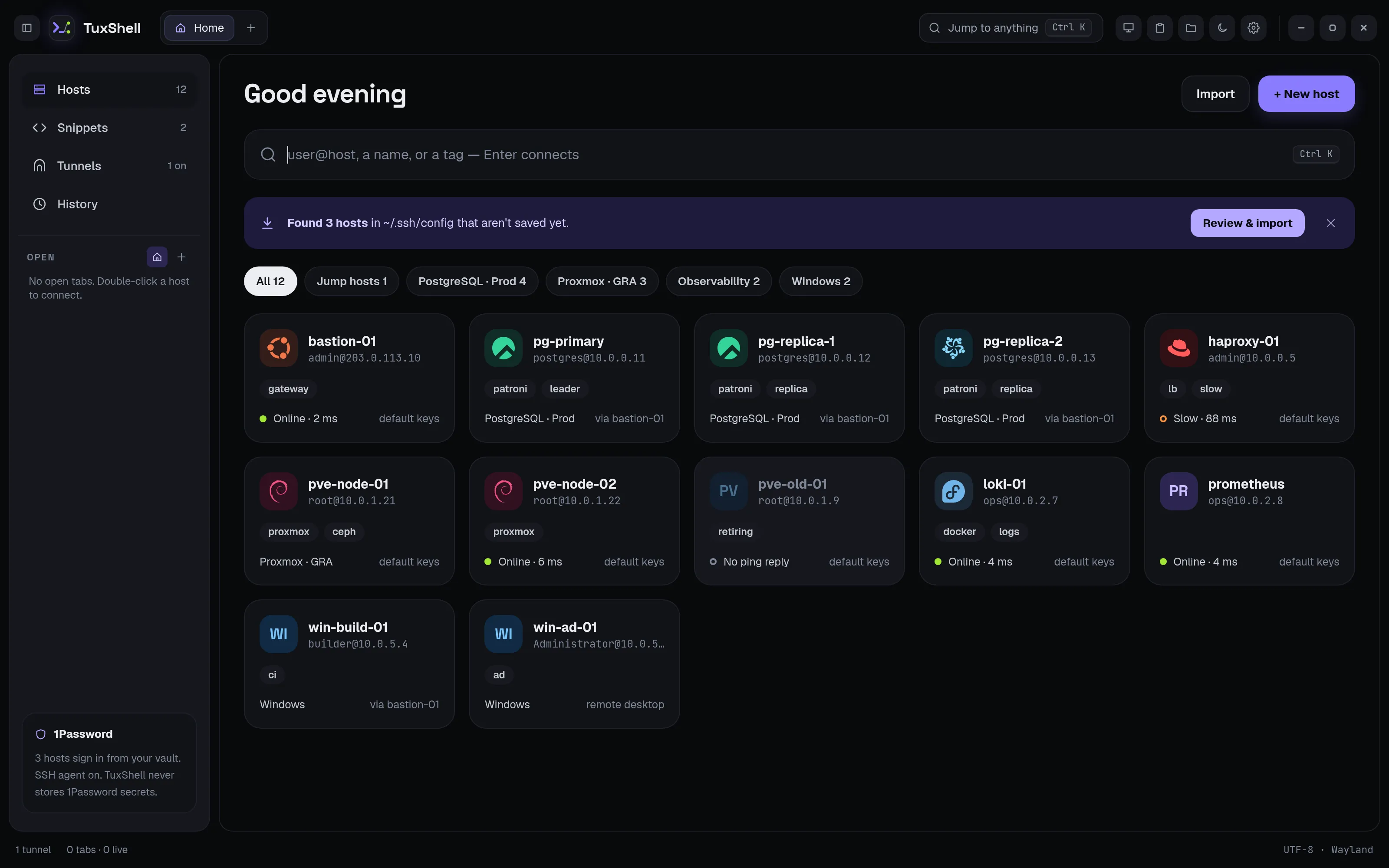 The start page: your hosts by group, with status, search and quick connect.
Working in sessions
- Tabs and split view
- Up to four panes per tab. Merge tabs into a split, move a pane out, maximize a pane, drag dividers to resize. Duplicate a tab, or reconnect all its panes.
- Saved layouts
- Save a set of tabs with their split panes and open them all again in one click. One layout can open at startup.
- Quick connect
- Fuzzy search your hosts, snippets, tunnels and actions, or type
user@host:port. Open a result in a split. Ctrl K - Broadcast typing
- Type into all panes of a tab at once, leaving out any pane you choose. Ctrl Shift B
- Snippets
- Saved commands, pasted into the terminal from Ctrl+K. They never run until you press Enter.
- Tunnels
- Local port forwards and SOCKS proxies through a saved host, listening on 127.0.0.1 only.
- Shared connections
- New panes, splits and the file browser reuse an open SSH connection, so you log in once.
- How fast it answers
- The status bar shows echo (how long typed keys take to come back from the server) and draw (how long TuxShell takes to show them).
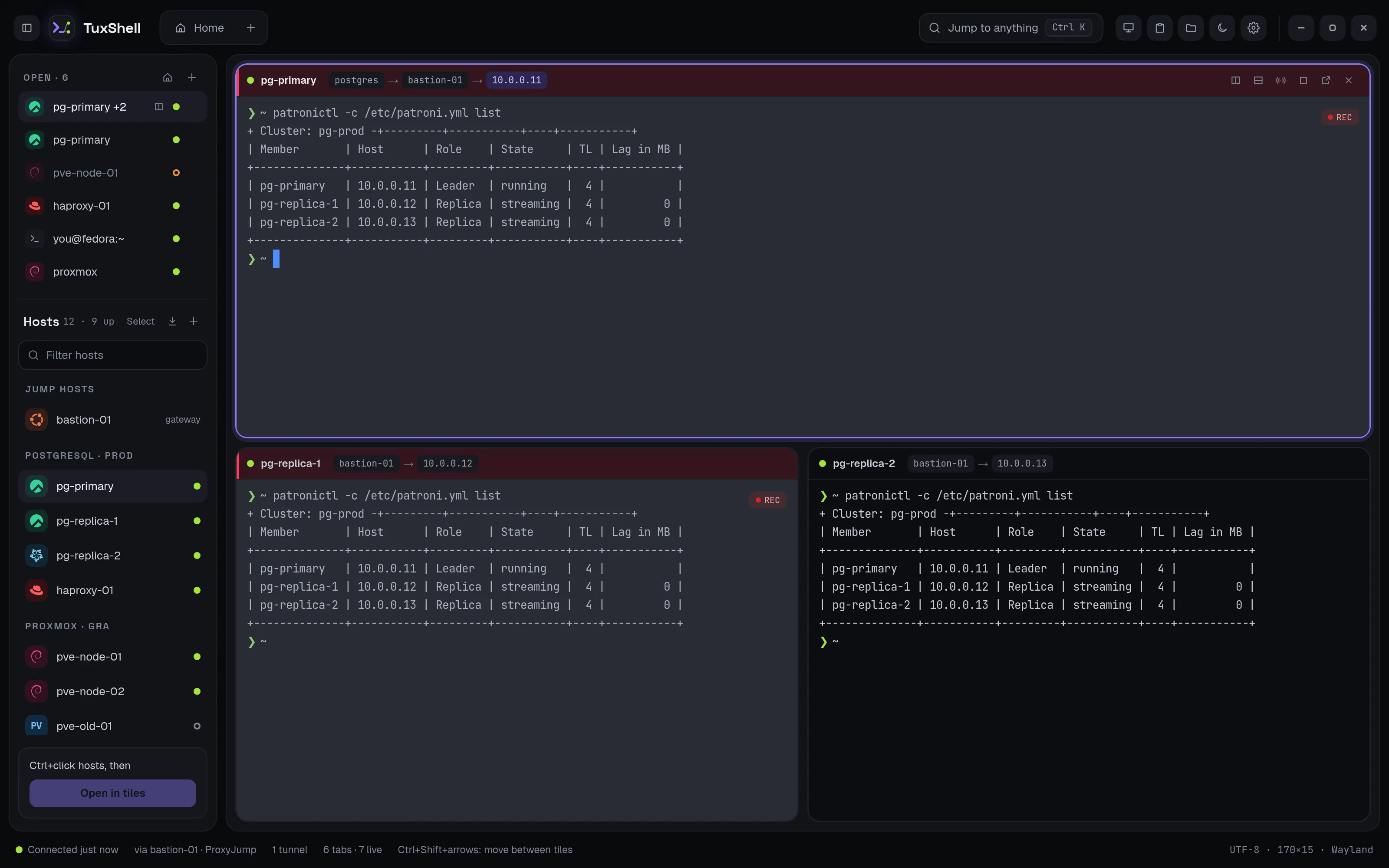 Open tabs and hosts in the left panel, up to four panes per tab.
Files and clipboard
- File browser
- Browse the focused pane's host, download (then Open or Show in folder), upload with a file picker or drag-and-drop. Rename, create folders, delete and change permissions, or edit a file in your desktop editor and upload it back. Never overwrites files on either side unasked. Ctrl Shift E
- Clipboard history
- Encrypted at rest with a key in your keyring. Skips password- and token-looking text. Pin and edit clips; each shows which host it came from. Ctrl Shift H
- History and recording
- Home → History lists your connections (never commands or output). Optionally record a session's screen output and play it back inside TuxShell.
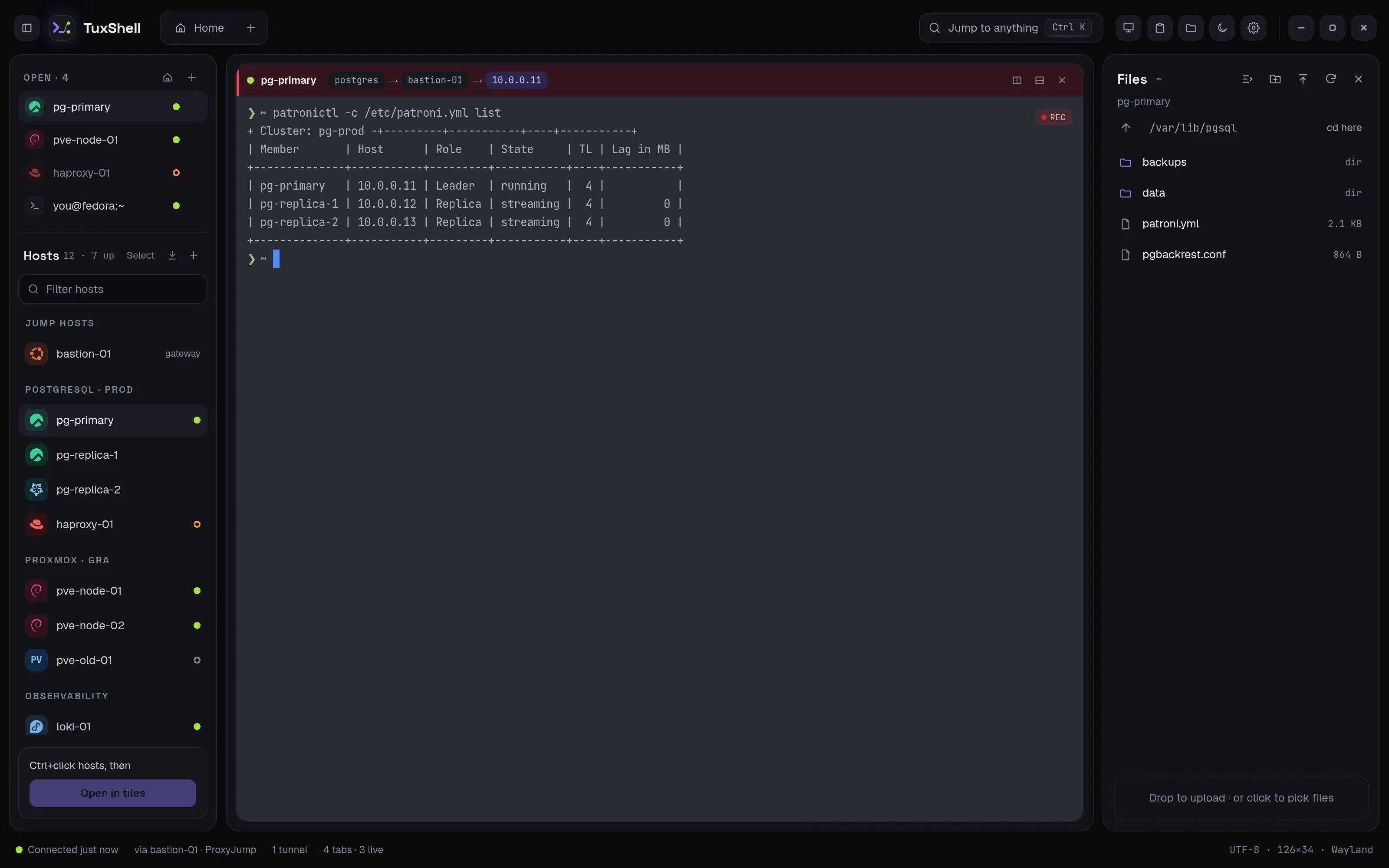 Upload, download, rename and edit, on the host of the focused pane.
Remote desktops
- In their own window
- FreeRDP 3: shared folders, copy and paste of text and files, sound and microphone, printers, smart cards, USB devices (beta), one program only (RemoteApp), quality presets, RD Gateway, multiple monitors.
- In a tab beta
- Built in: copy and paste of text and files, resizes with the tab.
- Safe by default
- Certificates are pinned and you're warned if one changes. RDP hosts can go through an SSH jump host.
- Imports
- Remmina connections and Windows .rdp files import with their settings.
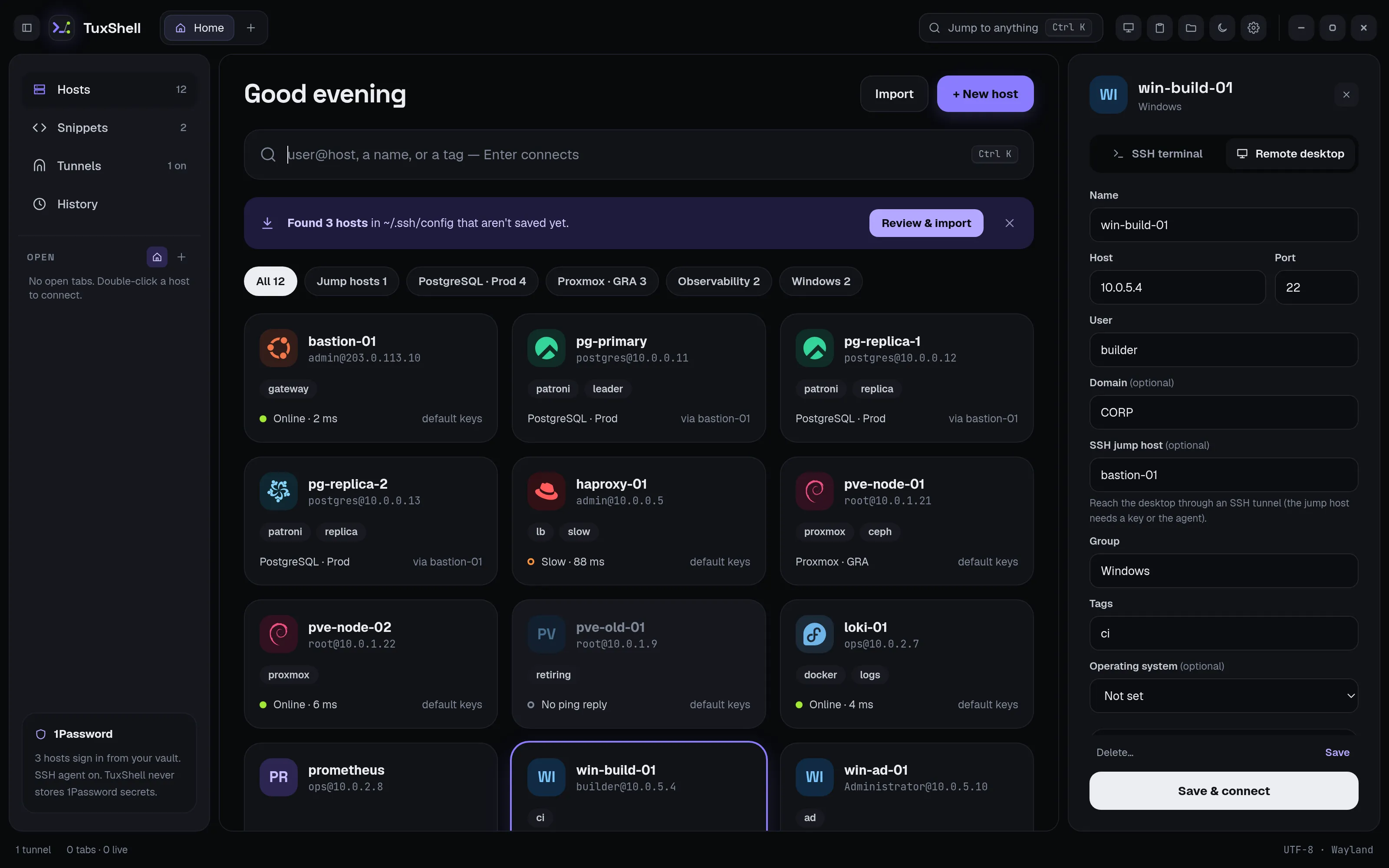 Remote desktops (RDP) sit next to your SSH hosts, with an SSH jump host if you need one.
Make it yours
- Terminal profiles
- Per-host colours, background image, pane header colour, scrolling and bell options, and a command to run on connect.
- Preferences
- Font (bundled or any installed monospace font), size, spacing, cursor, colour schemes (Solarized, Dracula, Nord, Gruvbox, One Dark, Tango…), scrollback, copy on select, right-click paste. Ctrl ,
- Shortcuts
- All listed in Preferences → Shortcuts, where you can change them or turn them off. On macOS they use ⌘.
- Themes
- Dark and light, or follow the system.
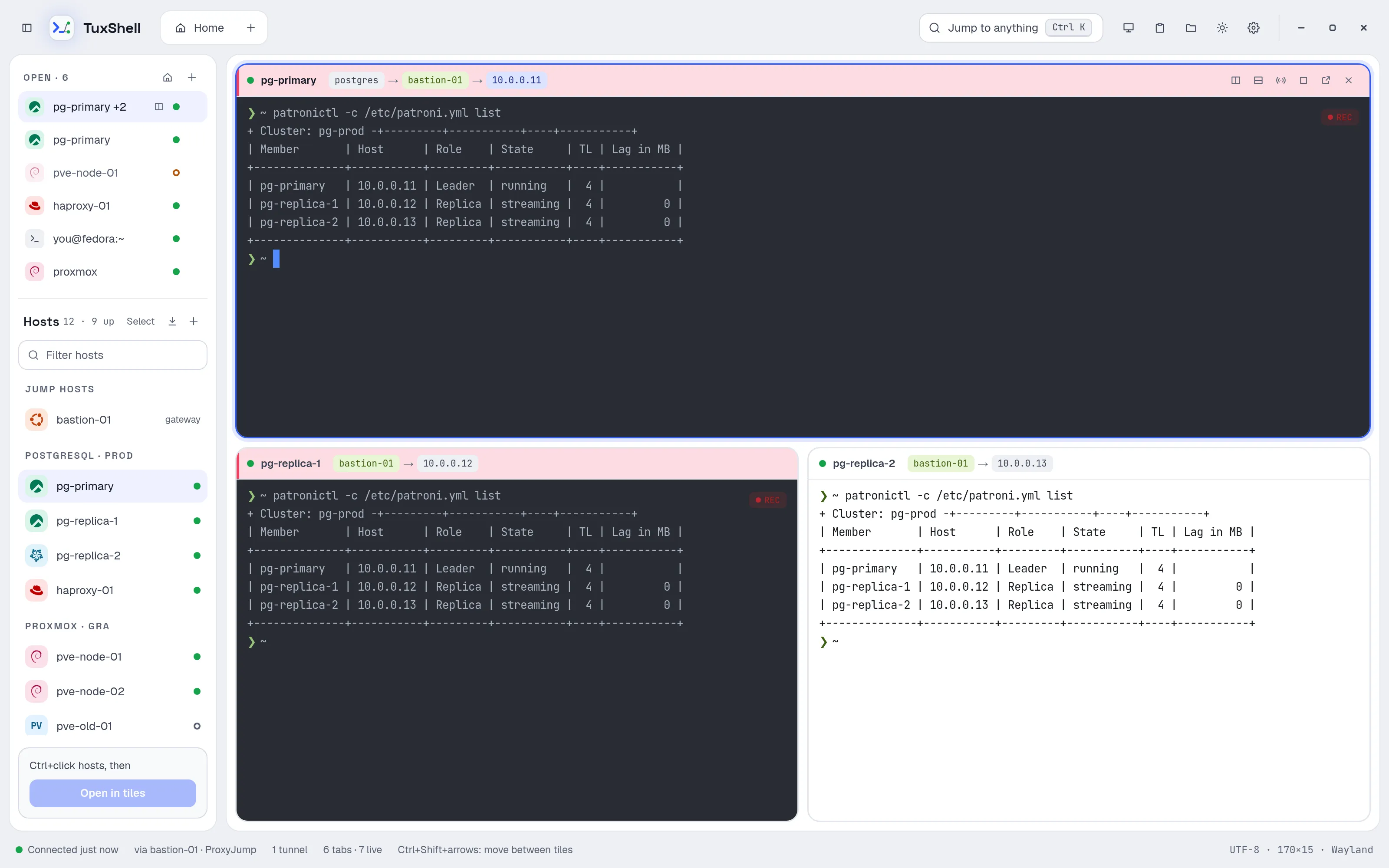 The whole app follows your choice. Terminals keep their own colour scheme per host.
Every detail is in the README.